To enable Facebook Login and Share Buttons, you must create a Facebook App and obtain the App ID and App Secret. Once generated, enter these credentials in the Facebook section of the Dashboard > wpDiscuz > Settings > Social Login and Share admin page.
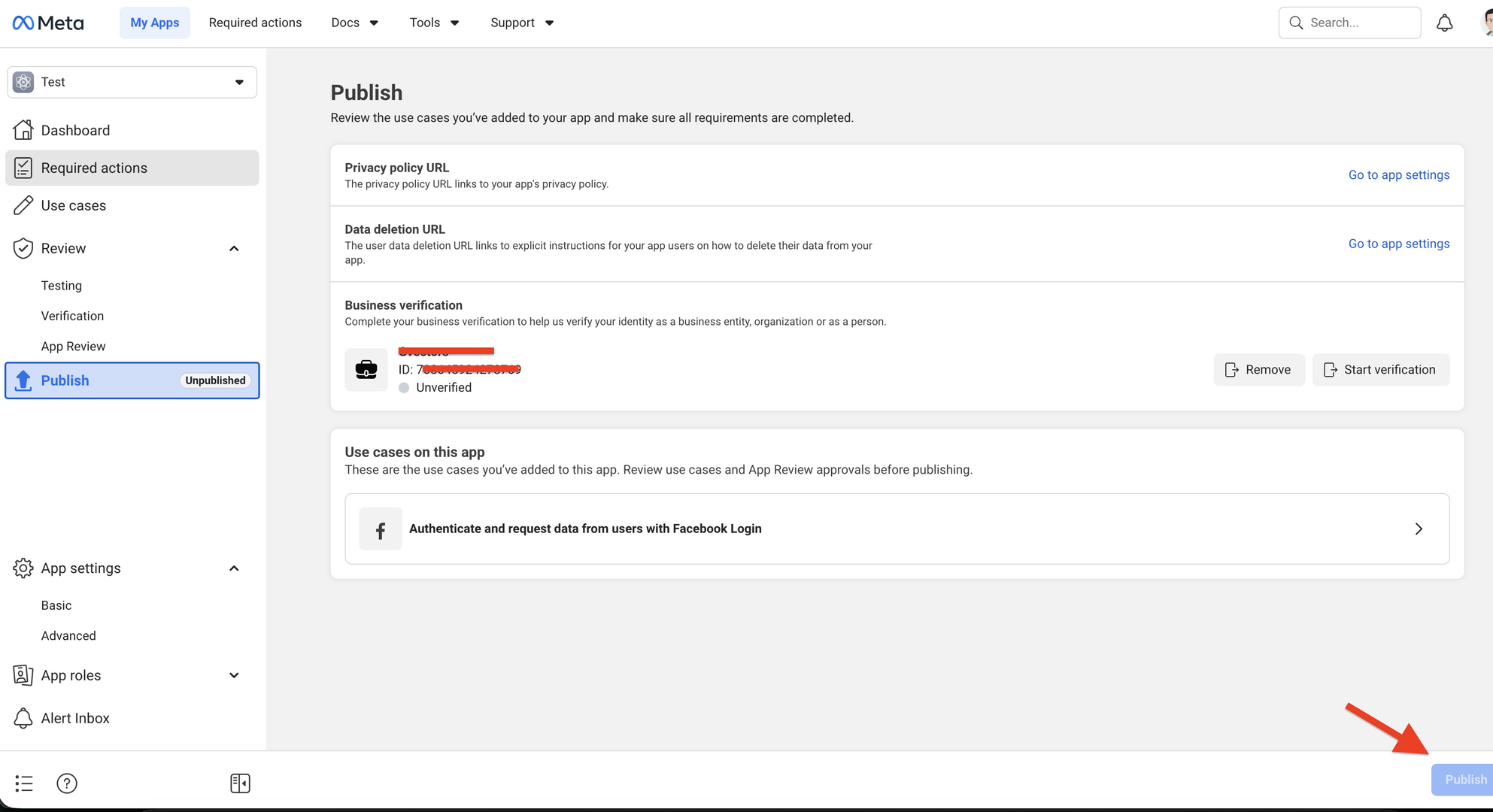
Important: A verified Facebook Business Account is required to use Facebook Login and Share features. Your Facebook App and Business Account may need to be reviewed and approved by Meta before these features can be used in production.
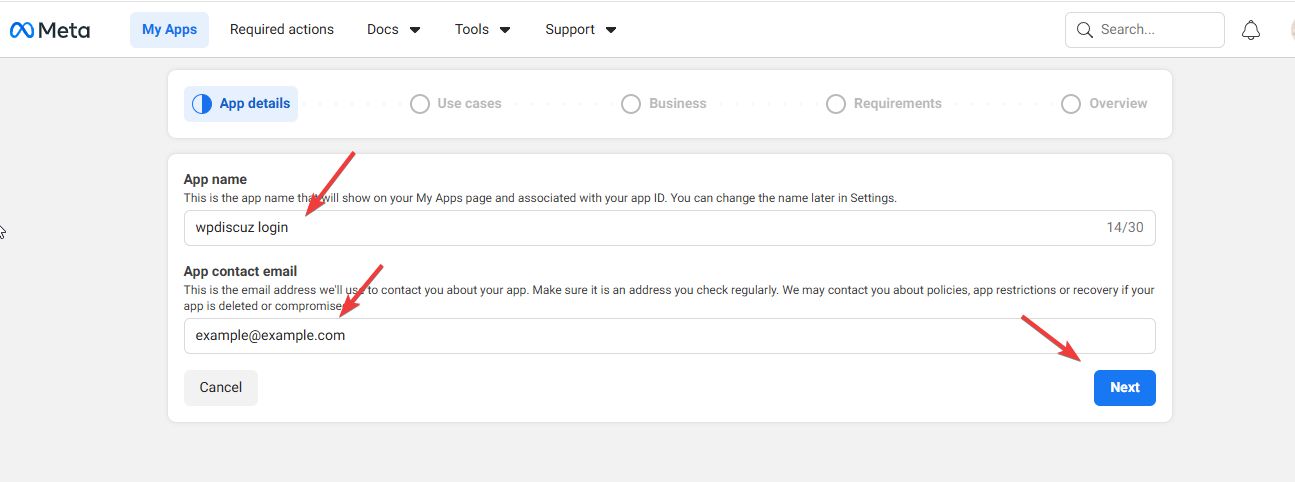
3. Enter the App Name and App Contact Email, then click [Next].
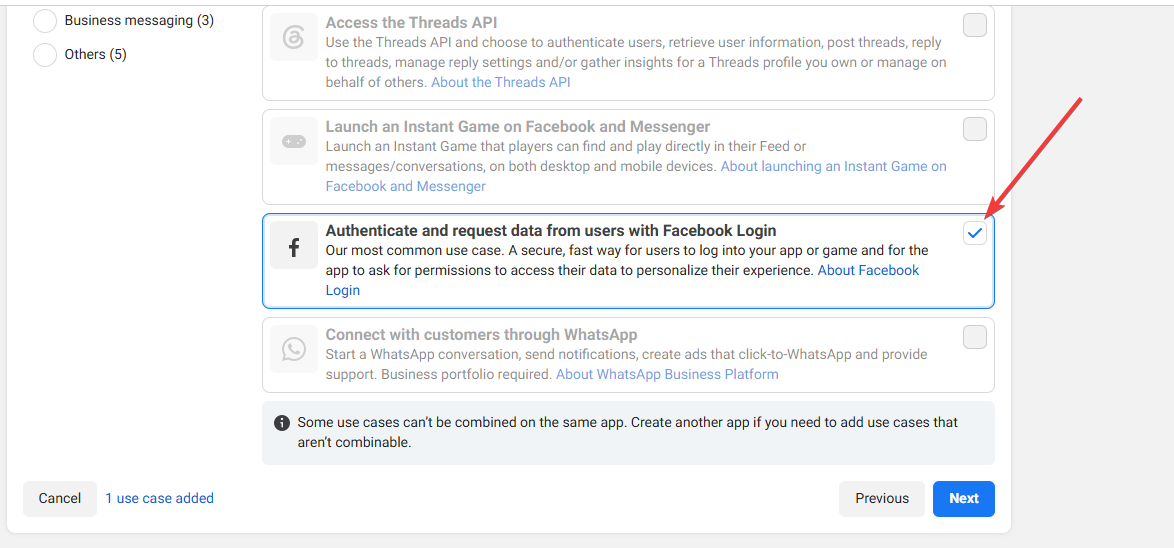
4. Select Authenticate and request data from users with Facebook Login, then click [Next].
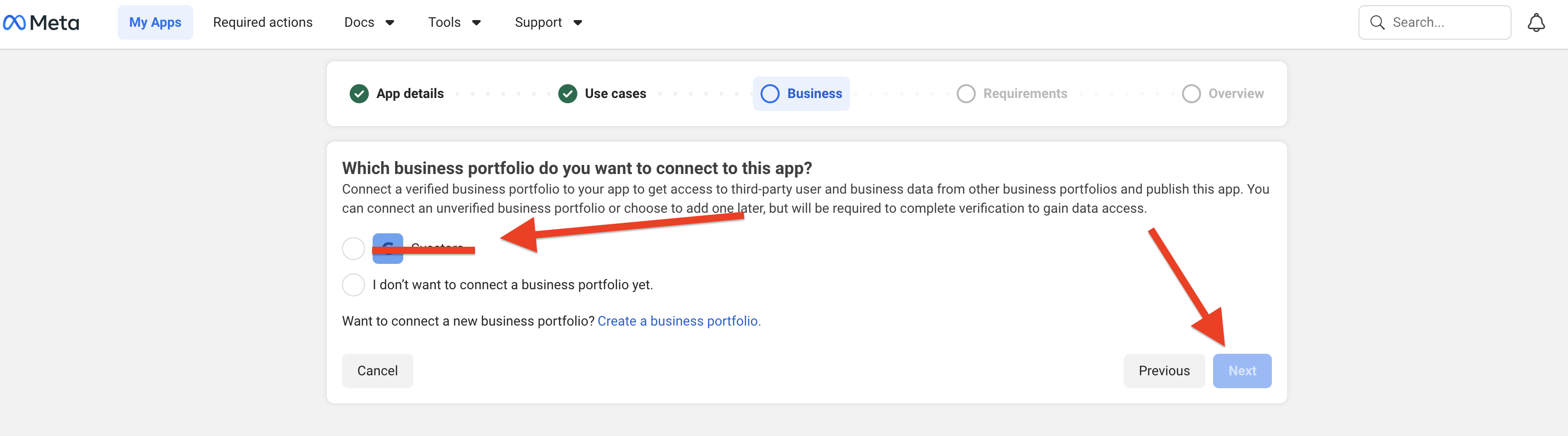
5. In the Which business portfolio do you want to connect to this app? section, select the appropriate business portfolio and click [Next].
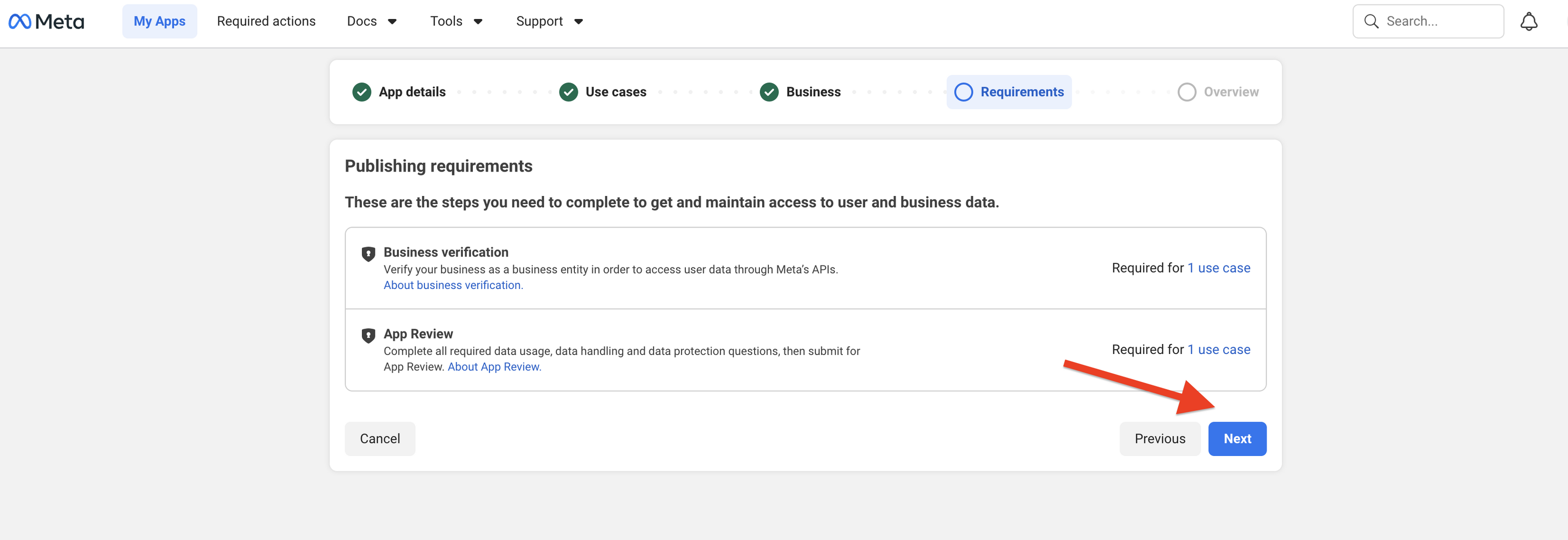
6. Complete the required steps to gain and maintain access to user and business data, then click [Next].
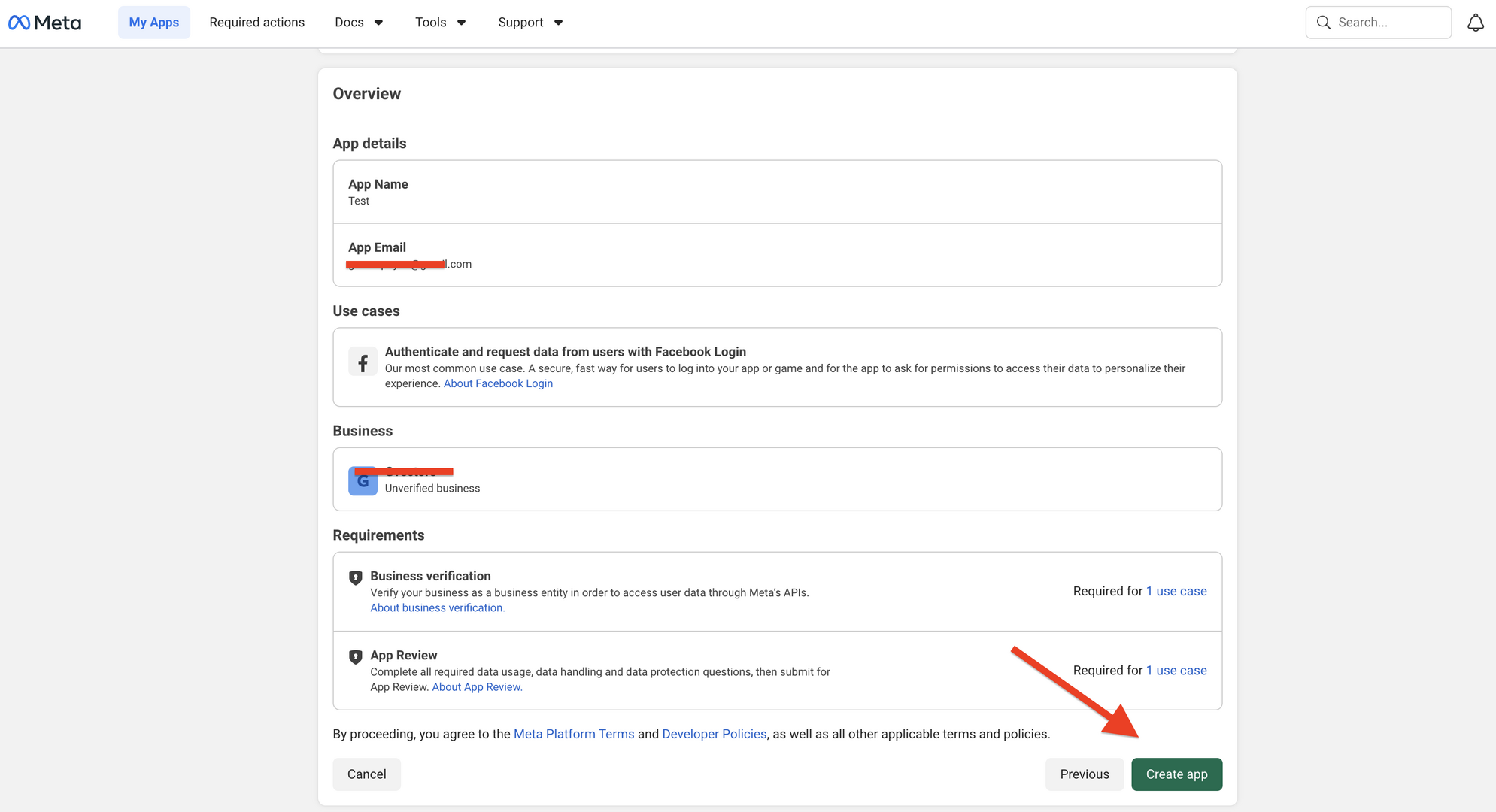
7. Review the provided information and click [Create App].
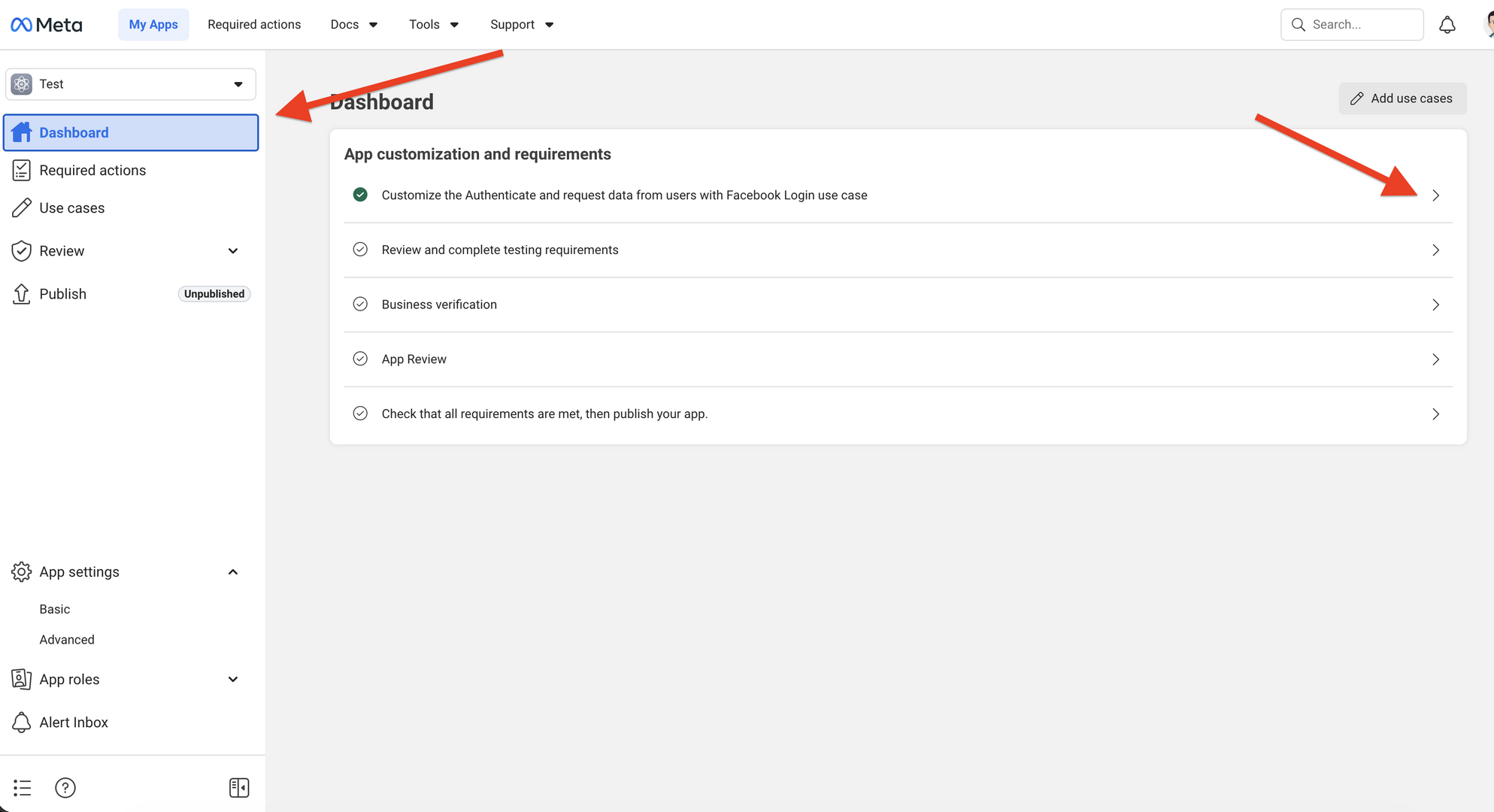
8. Go to My Apps > Dashboard and select the Authenticate and request data from users with Facebook Login use case.
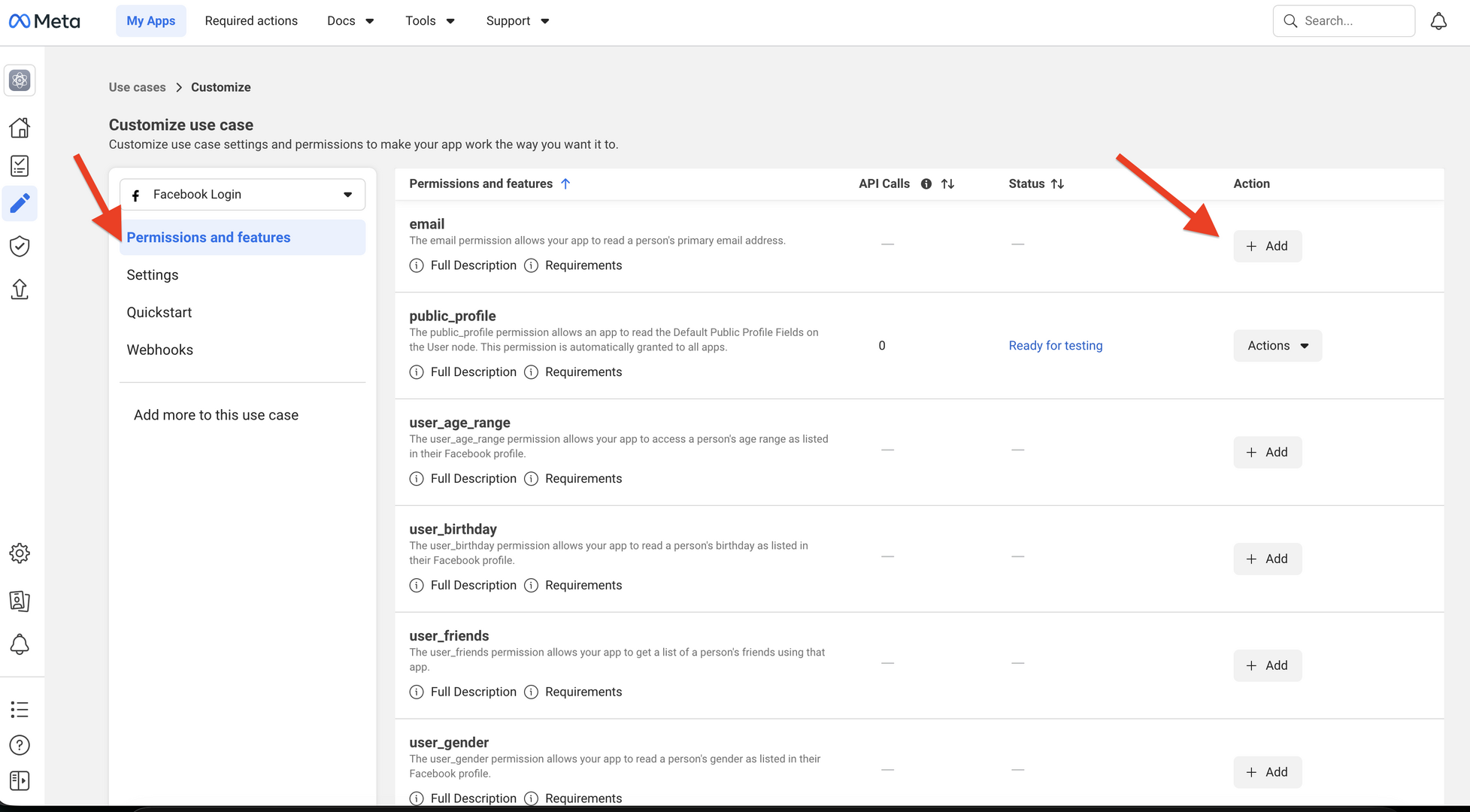
9. In the Permissions and Features section, click the [Add] button to add the required permissions.
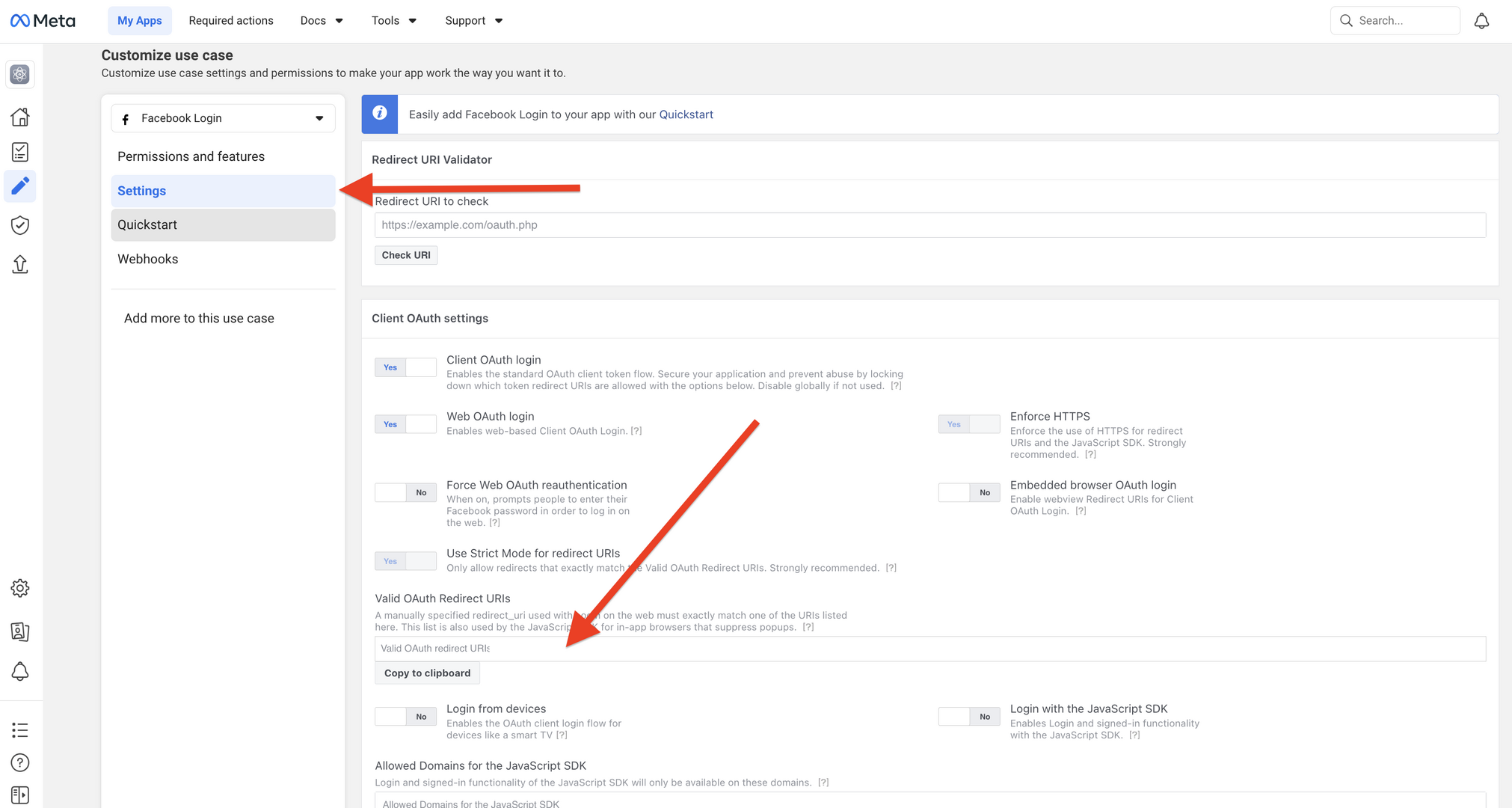
10. You need to fill the “Valid OAuth Redirect URIs” and click [Save Changes].
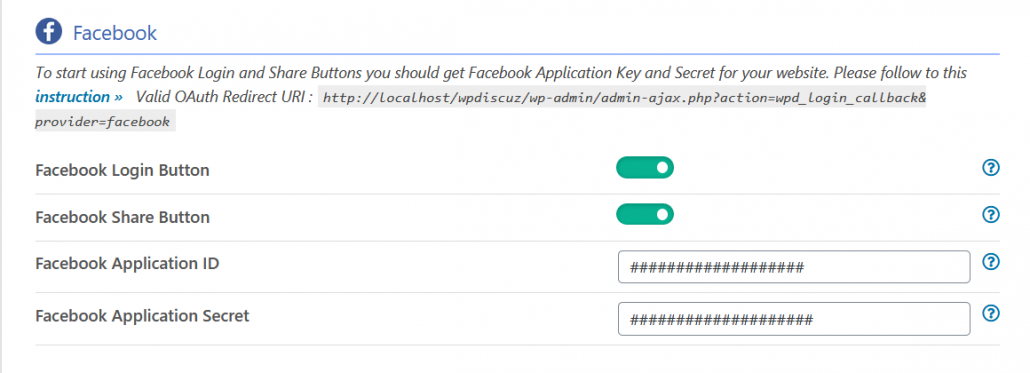
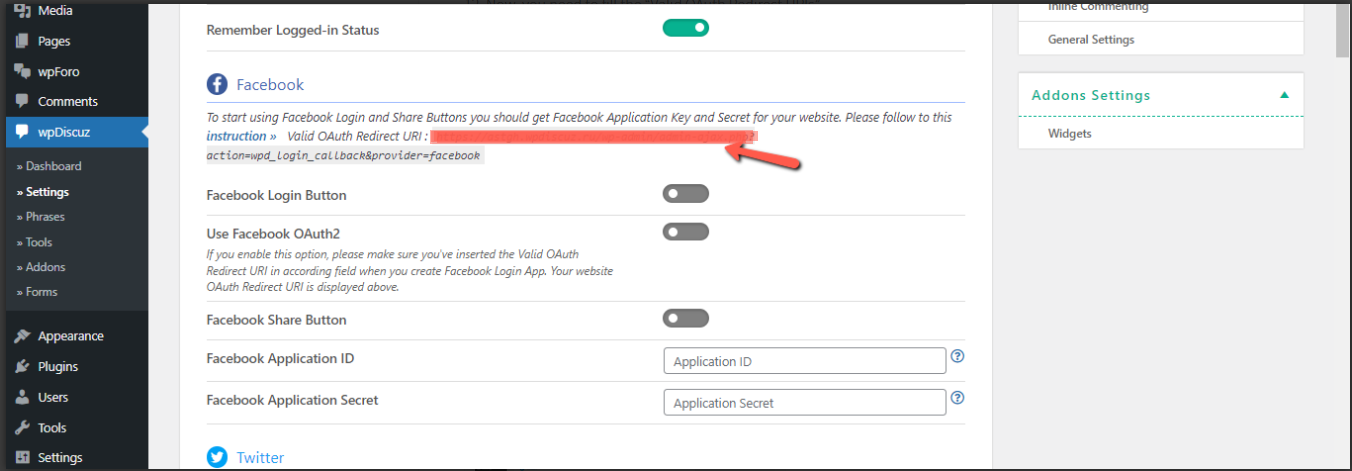
To get the Valid OAuth Redirect URIs, go to the Dashboard > wpDiscuz > Settings > Social Login and Share admin page (Facebook section):
Note:Please note that Facebook Applications are not available for http:// websites, those are only available for https:// secure websites.
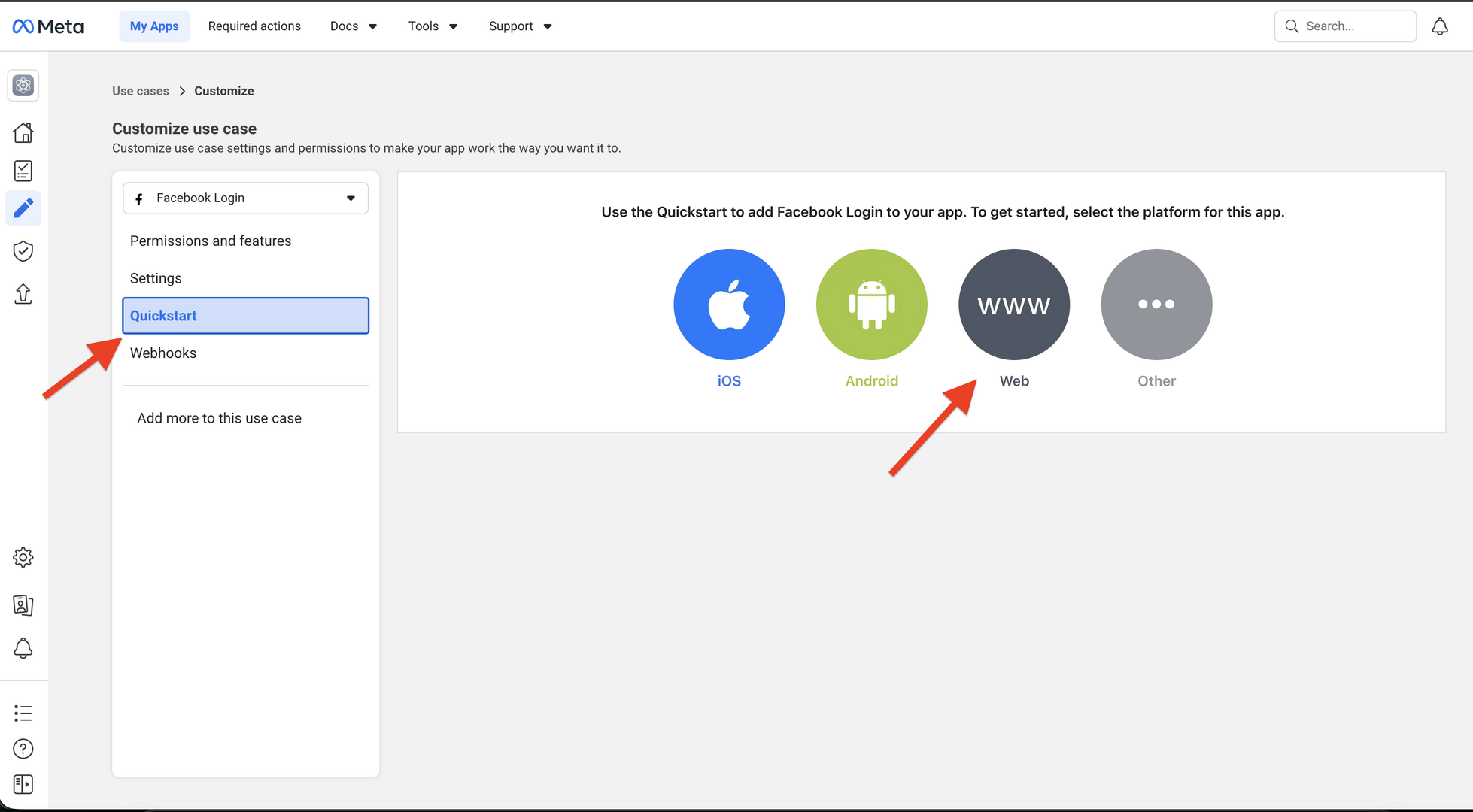
11. Open the Quickstart menu and select WWW as the platform.
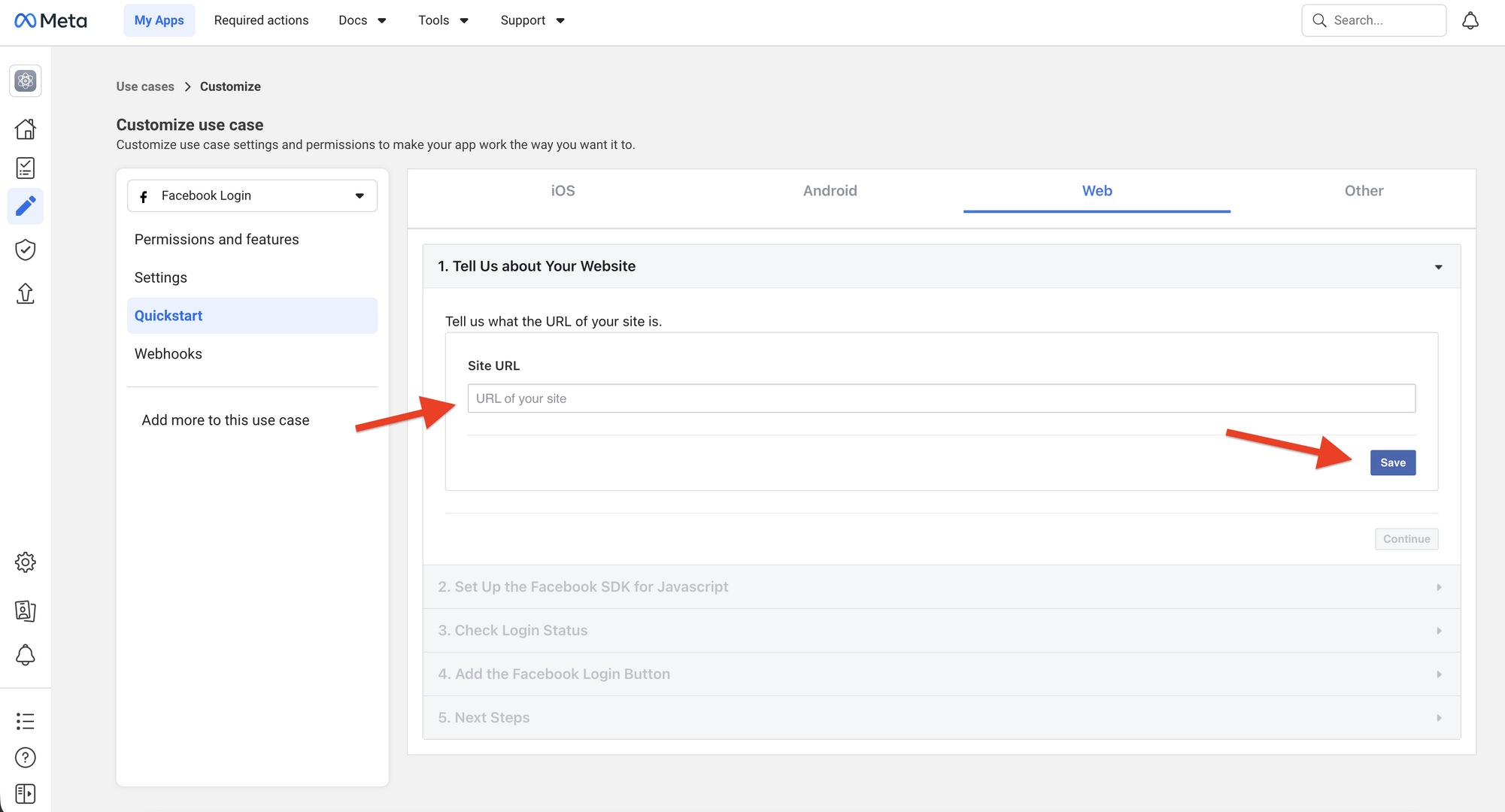
12. In the next step, enter your website URL.
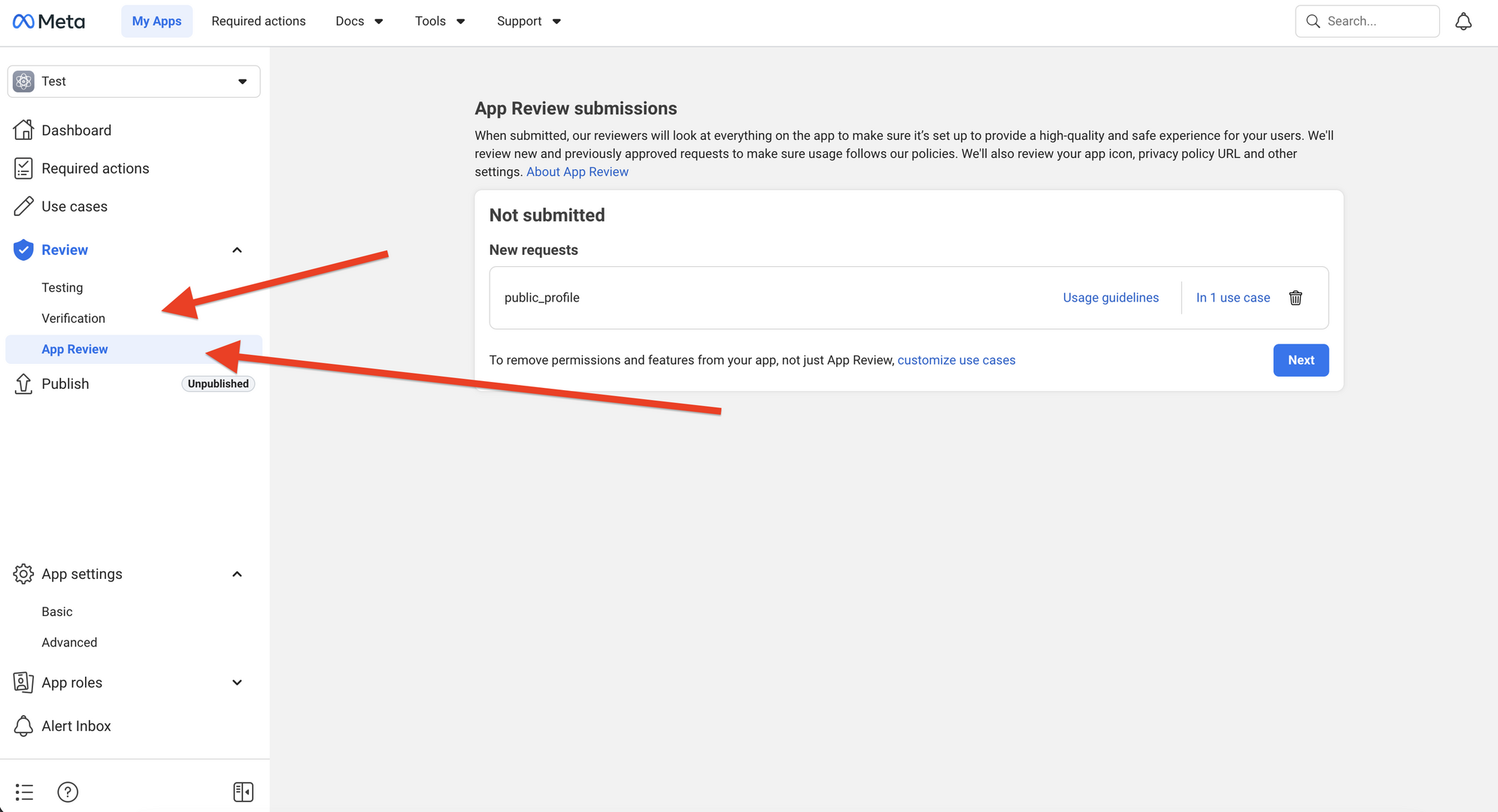
13. Navigate to the App Review section and ensure that both your Facebook Business Account and Facebook App have been approved by Meta, if required
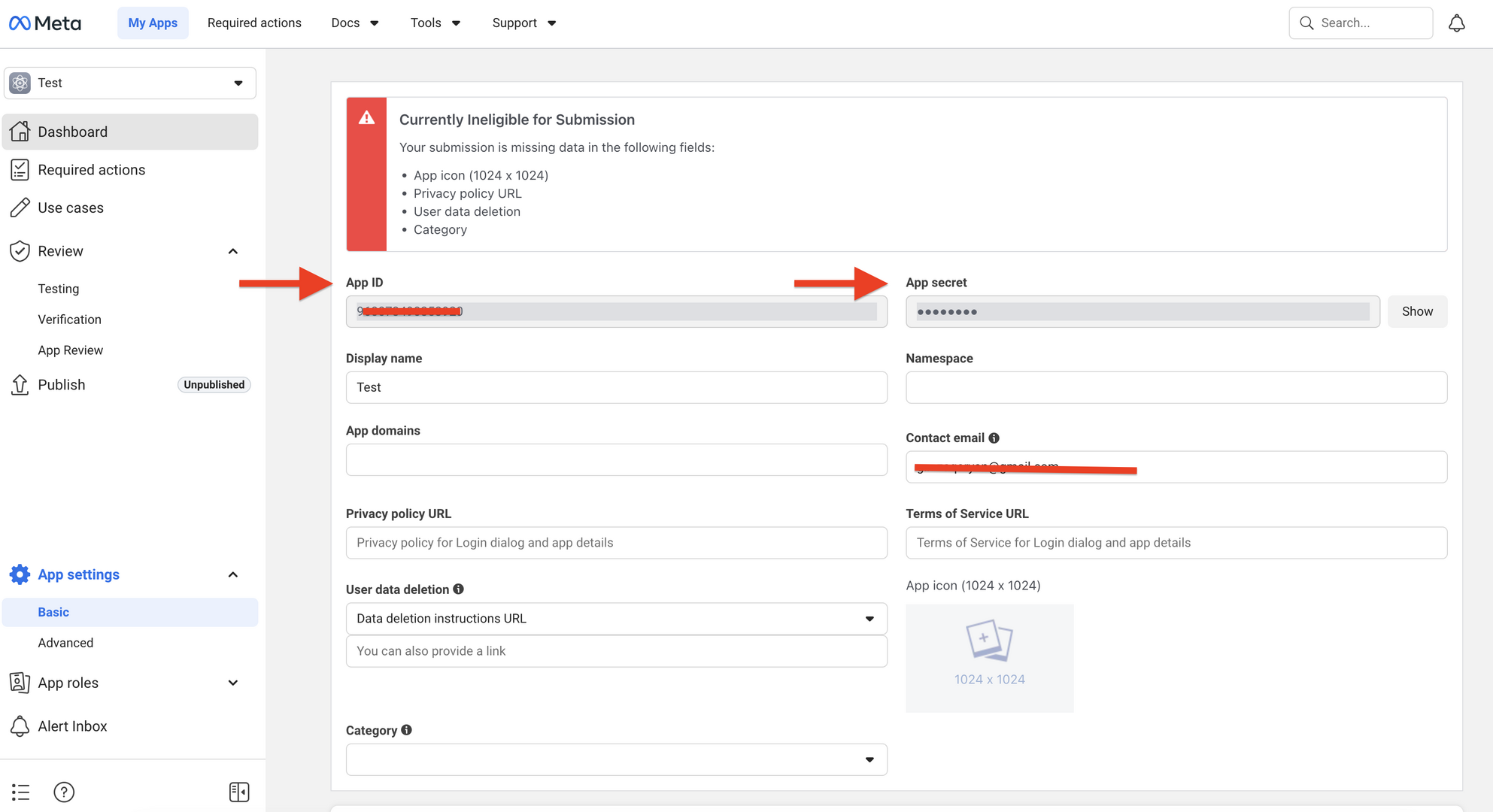
14. Go to App Settings > Basic and copy your App ID and App Secret.
16. Finally, copy the Facebook App ID and App Secret and paste them into the corresponding fields in the Facebook section of Dashboard > wpDiscuz > Settings > Social Login and Share.
Important: Make sure your application is switched to Live Mode before attempting to use Facebook Login or Share features on your website.
This topic was modified 4 months ago 3 times by Asti